
9.7.4 Leash CodeHS Answers: JavaScript Code and Easy Explanation
Learn how to solve the Leash exercise with working JavaScript code, mouse movement controls, and simple explanations for beginners.

Introduction
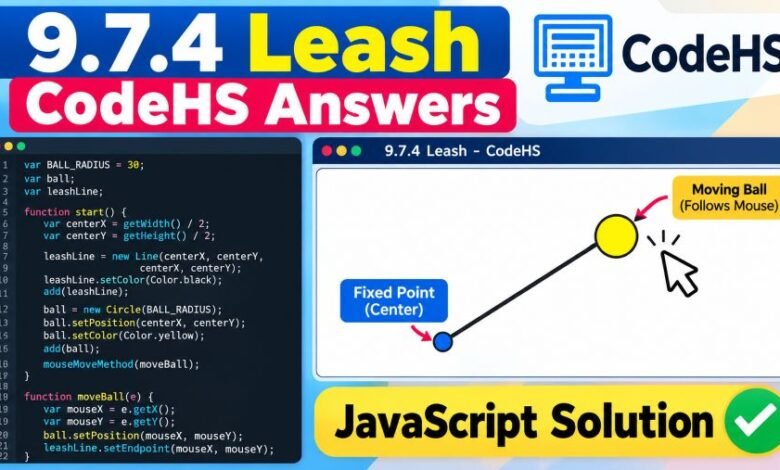
Looking for 9.7.4 Leash CodeHS Answers? This CodeHS JavaScript exercise teaches students how to draw a ball attached to a line and make the ball follow the mouse pointer. The line works like a leash because one endpoint stays fixed while the other moves with the ball.
The challenge combines basic graphics, coordinates, and mouse events. It might seem confusing at first, especially when the ball moves but the line does not. Once you understand how the objects connect, the solution becomes much easier.
This article covers the JavaScript solution, explains every important part, and helps you fix common errors.
Quick Facts
| Feature | Details |
|---|---|
| Exercise Name | 9.7.4 Leash |
| Learning Platform | CodeHS |
| Programming Language | JavaScript |
| Main Topic | Drawing Lines and Mouse Events |
| Difficulty | Beginner |
| Graphics Objects | Circle and Line |
| Main Function | mouseMoveMethod() |
| Main Goal | Make a ball follow the mouse while attached to a line |
What Is the Leash Exercise in CodeHS?
The Leash exercise is a JavaScript graphics activity that teaches students to control objects using mouse movement.
The program starts with a circle positioned at the center of the graphics window. A line connects the circle to the same central point.
When the mouse moves, the circle follows its coordinates. The line stretches because its moving endpoint follows the circle.
The other endpoint stays in the center.
This creates the appearance of a ball attached to a leash.
The exercise introduces an important programming idea: event-driven programming. Instead of running an action repeatedly without input, the program responds when a user moves the mouse.
Complete JavaScript Solution
Here is an example implementation using the classic CodeHS JavaScript Graphics environment.
var BALL_RADIUS = 30;

var ball;
var leashLine;

function start() {
    var centerX = getWidth() / 2;
    var centerY = getHeight() / 2;

    // Create the leash
    leashLine = new Line(
        centerX,
        centerY,
        centerX,
        centerY
    );

    leashLine.setColor(Color.black);
    add(leashLine);

    // Create the ball
    ball = new Circle(BALL_RADIUS);
    ball.setPosition(centerX, centerY);
    ball.setColor(Color.yellow);
    add(ball);

    // Register mouse movement
    mouseMoveMethod(moveBall);
}

function moveBall(e) {
    var mouseX = e.getX();
    var mouseY = e.getY();

    ball.setPosition(mouseX, mouseY);
    leashLine.setEndpoint(mouseX, mouseY);
}
The example follows the graphics methods documented by CodeHS. However, your course may require particular variable names, colors, or starter code. Follow those requirements if they differ from this example.
How Does the Leash Program Work?
The code may look complicated when you first read it. But every statement has a simple job.
Step 1: Set the Ball Radius
The program begins by defining the size of the ball.
var BALL_RADIUS = 30;The value 30 controls the radius of the circle.
Using a variable makes it easier to change the size without updating multiple lines.
If your teacher specifies a different radius, replace the value accordingly.
Step 2: Find the Center of the Graphics Window
The next step calculates the middle of the canvas.
var centerX = getWidth() / 2;
var centerY = getHeight() / 2;
The getWidth() function returns the width of the graphics window.
Similarly, getHeight() returns its height.
Dividing both measurements by two gives the central coordinates.
For example, a window measuring 400 pixels wide and 500 pixels tall has a center at (200, 250).
This calculation allows the program to work with different canvas sizes.
Step 3: Create the Leash Line
The leash is represented by a JavaScript graphics line.
leashLine = new Line(
    centerX,
    centerY,
    centerX,
    centerY
);
A line requires four coordinate values.
The first pair determines its starting position, and the second pair determines its endpoint.
Both positions initially use the center of the canvas.
This means the line starts with zero length.
When the mouse moves, the endpoint changes, making the leash visible.
Step 4: Create the Ball
The next section creates the circle.
ball = new Circle(BALL_RADIUS);
ball.setPosition(centerX, centerY);
ball.setColor(Color.yellow);
add(ball);
The Circle() constructor creates the ball.
The setPosition() method places it at the specified coordinates.
The setColor() method changes its appearance, while add() displays it on the graphics canvas.
The ball is added after the line so it appears above the leash where the two objects connect.
Step 5: Detect Mouse Movement
The following statement activates mouse tracking:
mouseMoveMethod(moveBall);This tells CodeHS to execute the moveBall function whenever the mouse moves over the canvas.
The function name is written without parentheses.
Why?
Because CodeHS needs a reference to the function so it can call it when a mouse event occurs.
Writing moveBall() would attempt to execute the function immediately.
Step 6: Move the Ball and Line Together
The final function handles mouse movement.
function moveBall(e) {
    var mouseX = e.getX();
    var mouseY = e.getY();

    ball.setPosition(mouseX, mouseY);
    leashLine.setEndpoint(mouseX, mouseY);
}
The parameter e represents the mouse event.
The methods e.getX() and e.getY() return the current pointer coordinates.
The program then updates two objects.
First, the ball moves to the mouse position.
Second, the endpoint of the line moves to exactly the same position.
The line’s starting point remains fixed.
That’s how the leash effect works.
Important JavaScript Functions You Should Know
The Leash activity introduces several useful graphics methods.
| Function | Purpose |
|---|---|
Circle() |
Creates a circular object |
Line() |
Draws a line between two points |
setPosition() |
Changes an object’s position |
setEndpoint() |
Updates the endpoint of a line |
mouseMoveMethod() |
Detects mouse movement |
getWidth() |
Gets the canvas width |
getHeight() |
Gets the canvas height |
getX() |
Returns the mouse X coordinate |
getY() |
Returns the mouse Y coordinate |
add() |
Displays an object on the canvas |
Students can review these methods in the official CodeHS JavaScript Graphics documentation.
Understanding these methods will help with other interactive graphics assignments.
Why Is My Leash Not Working?
Some students write code that runs without an obvious syntax error but does not produce the expected graphics.
Several common mistakes can cause this problem.
The Ball Moves but the Line Does Not
This usually means the mouse movement function updates only the ball.
Make sure the function also includes:
leashLine.setEndpoint(e.getX(), e.getY());Without this statement, the leash endpoint cannot follow the mouse.
The Line Moves Away from the Center
The line should have one fixed endpoint.
Using the wrong method may cause the entire line to move instead.
Use setEndpoint() to change only the moving end of the line.
The Ball Does Not Appear
Check whether you added the circle to the canvas.
add(ball);Creating a circle is not enough.
The add() statement makes the graphics object visible.
A Variable Is Undefined
Variables declared inside a function may not be accessible from other functions.
For example:
function start() {
    var ball = new Circle(30);
}
Here, ball is local to start().
A separate mouse movement function cannot directly access that local variable.
The sample solution declares the graphics variables outside the functions so both functions can use them.
Mouse Movement Does Nothing
Check the event registration.
Correct:
mouseMoveMethod(moveBall);Incorrect:
mouseMoveMethod(moveBall());The first version registers a callback.
The second tries to call the function immediately, without receiving the expected mouse event.
How to Check Whether Your Answer Is Correct
After writing the code, run the program and test the graphics.
Start by checking whether the circle appears in the center.
Then move the mouse toward a corner of the screen.
The circle should follow the pointer while the line stretches from its fixed starting point.
Move the mouse again.
The line should remain connected to the center of the ball.
You should also test movement in different directions to confirm that the two objects continue sharing the same endpoint coordinates.
A correct implementation does not need to create another circle or line each time the mouse moves.
It updates the existing objects instead.
Why Should You Create the Ball and Line Only Once?
A beginner might try creating a new circle whenever the mouse moves.
Although this may appear reasonable, it can produce unnecessary objects.
The better approach is to create the graphics objects during the setup stage and update their positions afterward.
This introduces the concept of object references.
The ball variable refers to the same circle throughout the program.
Similarly, leashLine refers to the original line.
When the mouse moves, the program modifies these existing objects rather than creating replacements.
This approach is also useful in simple games, drawing applications, and animation projects.
What Is the Difference Between setPosition and setEndpoint?
Both methods deal with coordinates, but their purposes differ.
The setPosition() method changes an object’s position. For the circle in this example, it changes the location of the ball’s center.
The setEndpoint() method changes the ending point of an existing line.
For the Leash exercise, both methods are necessary.
The circle must follow the mouse, while the line must extend toward the circle without changing its fixed starting point.
Using the same coordinates keeps the objects connected.
Understanding Mouse Coordinates
Every location on the graphics canvas can be described using two numbers.
The X coordinate represents horizontal position.
The Y coordinate represents vertical position.
In CodeHS graphics, increasing X generally moves an object to the right, while increasing Y moves it downward.
For example, the mouse might be positioned at (150, 200).
The movement function reads those values and places the circle at that position.
It also updates the line endpoint to (150, 200).
The circle and the endpoint therefore remain together.
This coordinate-based approach is the central idea behind the program.
Can You Customize the Leash Exercise?
Yes. Once the basic program works, you can experiment with its appearance.
You could change the ball’s color, adjust its radius, or make the leash thicker.
For example:
ball.setColor(Color.red);
leashLine.setColor(Color.blue);
leashLine.setLineWidth(4);
These modifications change the visual style without altering the main movement logic.
However, if your CodeHS assignment requires specific colors, dimensions, or other settings, keep the required values when submitting.
Is 9.7.4 Leash Different from 4.7.4 Leash?
You may find online discussions mentioning both 9.7.4 Leash and 4.7.4 Leash.
These exercise labels can appear in different course versions and lesson arrangements.
The tasks discussed under those names commonly involve similar JavaScript graphics techniques: drawing a circle, connecting it to a line, and updating both with mouse events.
The best approach is to compare the assignment instructions rather than relying only on the exercise number.
If the requirements are the same, the core logic will generally be similar.
What Programming Skills Does This Exercise Teach?
The Leash exercise introduces several beginner programming concepts.
One is event handling. The program responds to mouse movement rather than running the same action continuously without user input.
Another is coordinate handling. Students learn how X and Y values determine positions on a graphics canvas.
It also introduces reusable objects.
Instead of drawing new shapes repeatedly, the program changes existing graphics objects.
These lessons provide a useful foundation for future interactive JavaScript projects.
Frequently Asked Questions
1. What is the answer to 9.7.4 Leash CodeHS?
The solution uses a circle and a line. A mouse movement callback updates the circle’s position and the line’s endpoint using the mouse coordinates.
2. Which programming language does the Leash exercise use?
The commonly documented version uses JavaScript with the CodeHS graphics library.
3. What does mouseMoveMethod() do?
It registers a function that runs when the user moves the mouse across the graphics canvas.
4. Why does my ball move without the leash?
The line’s endpoint may not be updating. Add the appropriate setEndpoint() statement inside the mouse event function.
5. What is the purpose of setEndpoint()?
It changes the ending position of an existing line without moving its starting point.
6. Can I change the ball’s radius?
Yes. Change the radius constant, provided your assignment allows a different size.
7. Why are global variables used?
Global variables allow the setup function and mouse movement function to access the same circle and line objects.
8. Will this JavaScript example pass the CodeHS grader?
It demonstrates the required graphics behavior, but individual assignments may contain additional requirements. Always compare the example with your course’s exact instructions and starter code.
Final Thought
The 9.7.4 Leash CodeHS exercise is a useful introduction to interactive JavaScript graphics.
Its main idea is simple: create a circle, connect it to a fixed point with a line, and update the circle and line endpoint whenever the mouse moves.
The ball follows the pointer. The leash stretches. The anchor remains fixed.
Once you understand how these three parts work together, you will be better prepared for other CodeHS exercises involving mouse events, graphics objects, and coordinate changes.